Release notes
What's New in PounceSQL
Every release, newest first. PounceSQL updates through Homebrew — brew upgrade --cask pouncesql keeps you current.
Install or update
Homebrew (recommended — stays current):
brew trust pounceapps/tap
brew install --cask pounceapps/tap/pouncesql
-
v0.3.1182026-08-05Latest
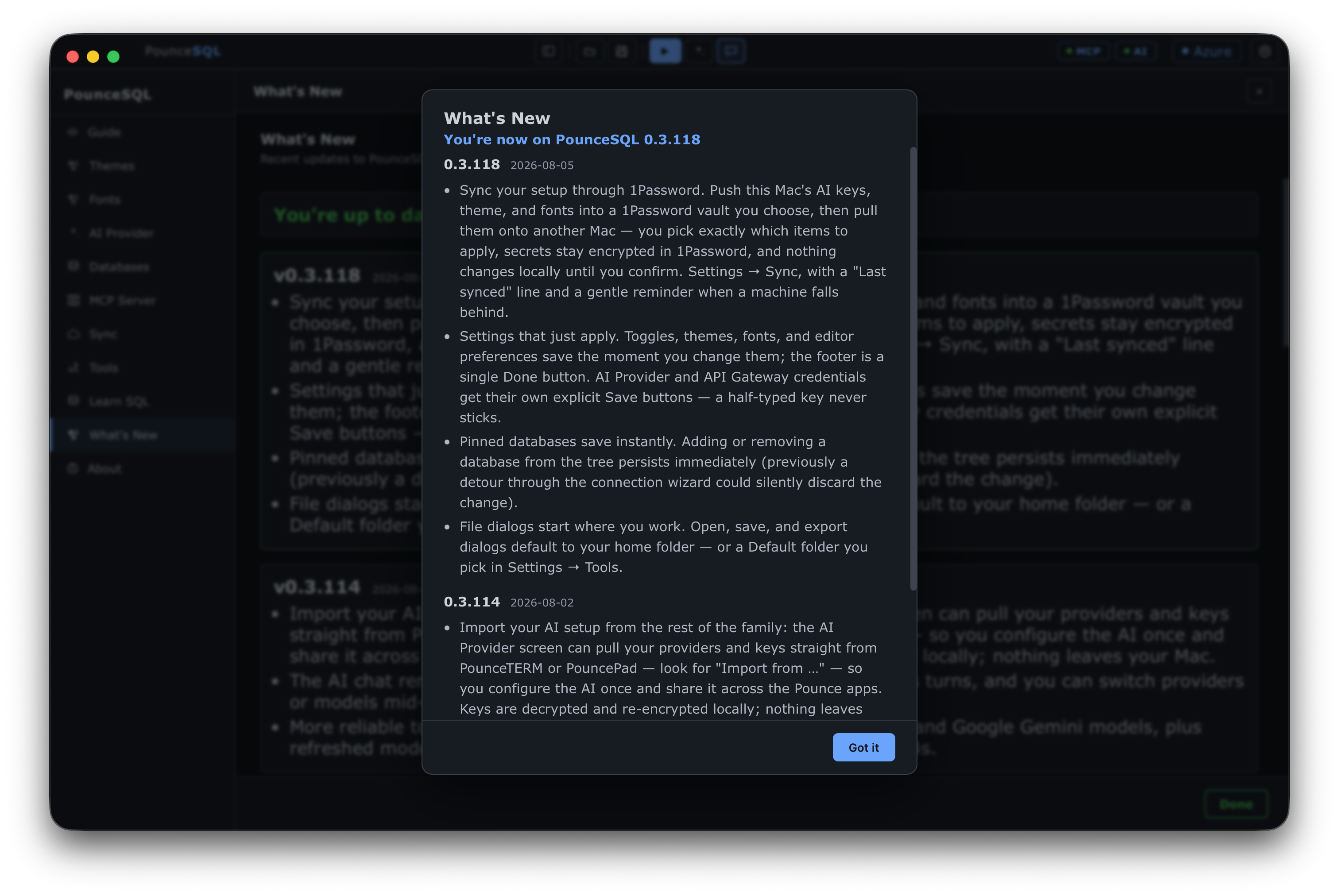
- Sync your setup through 1Password. Push this Mac's AI keys, theme, and fonts into a vault you choose, then pull them onto another Mac — you pick exactly which items to apply, secrets stay encrypted in 1Password, and nothing changes locally until you confirm. Settings → Sync, with a “Last synced” line and a reminder when a machine falls behind.
- Settings that just apply. Toggles, themes, fonts, and editor preferences save the moment you change them, and the footer is a single Done button; AI Provider and API Gateway credentials keep their own explicit Save buttons so a half-typed key never sticks.
- Pinned databases save instantly. Adding or removing a database from the tree persists immediately — previously a detour through the connection wizard could silently discard the change.
- File dialogs start where you work. Open, save, and export dialogs default to your home folder, or to a Default folder you pick in Settings → Tools.
-
v0.3.1142026-08-02
- Import your AI setup from the rest of the family. The AI Provider screen can pull your providers and keys straight from PounceTERM or PouncePad — look for Import from … — so you configure the AI once and share it across the Pounce apps. Keys are decrypted and re-encrypted locally; nothing leaves your Mac.
- The AI chat remembers the conversation. It tracks context across turns, and you can switch providers or models mid-chat without losing the thread.
- More reliable tool-calling with the latest OpenAI (GPT-5 and o-series) and Google Gemini models, plus refreshed model lists that drop deprecated ids that were returning 404s.
-
v0.3.1132026-07-15
- Connect to AWS RDS and Aurora PostgreSQL with your AWS login — no database password. When adding a PostgreSQL connection, set Authentication to AWS IAM.
- Uses your existing AWS CLI session: sign in with
aws sso login(SSO) oraws configure(access keys). If you're already signed in, skip the Sign in to AWS button and just Connect & List Databases. - Connections are secured automatically — TLS with full certificate validation against Amazon's RDS certificate authority, which is bundled in the app.
- The AWS Region is filled in for you from the server's RDS endpoint.
-
v0.3.1112026-07-07
- New Options menu in the menu bar — Add Database, Show / Hide Databases, Settings, Get Started, What's New, and About, all in one place.
- Copy anywhere — a Copy button on the Results, Tools, and Logging panels (results copy as TSV, ready for a spreadsheet), plus a copy button on every AI chat message.
- New Get Started tab walks you through adding a database, configuring the AI, learning SQL, and running your first query.
- Fixed PostgreSQL connections to servers without TLS (local / dev) — the default now prefers TLS and falls back to plaintext instead of failing. Use the Encrypt option for strict TLS.
-
v0.3.1102026-07-05
- New home under pounceapps. Installed with the old Homebrew tap? Re-tap to keep getting updates:
brew untap senzalldev/tap, thenbrew trust pounceapps/tapandbrew install --cask pounceapps/tap/pouncesql. - After updating, macOS may ask once to allow PounceSQL to use its keychain item — click Always Allow. Your saved connections and settings are unchanged.
- Redesigned Learn SQL — a dashboard with a summary, one-click Load / Restore / Download for every practice database, and quick links to guides.
- What's New now shows whether you're up to date, with the exact upgrade command.
- Azure sign-in on the Homebrew build now opens Terminal for
az logininstead of doing nothing when you're not signed in. - Fixed in-app update checks — they now point at the current release feed.
- New home under pounceapps. Installed with the old Homebrew tap? Re-tap to keep getting updates:
-
v0.3.1062026-07-05
- Learn SQL: load Star Wars, Pokémon, Music store, World countries, Olympic medals, and Marvel & DC characters with one click. Core sets are built in; larger ones download on demand.
- PounceSQL now ships with the full Music store loaded by default (instead of a tiny demo); remove or reload it like any other sample.
- New World countries, Olympic medals (1896–2016), and Marvel & DC datasets — great for GROUP BY, aggregates and trend charts.
- All sample databases are free to browse and download at github.com/pounceapps/sample-databases.
- AI providers are now one simple list — OpenAI, Anthropic, Google, Ollama, and custom — each with its own saved settings and model.
- Softer light theme, per-directory Azure sign-in, and a reset-to-defaults button for editor and tool settings.
-
v0.3.992026-06-30
- Connect any AI provider: OpenAI, Anthropic, Ollama (local/free), or a custom gateway — with per-provider profiles and a quick model switcher.
- Richer AI chat: Mermaid diagrams, charts, heatmaps, KPIs, LaTeX, and Markdown, plus chat history and token stats.
- On-prem SQL Server support (2017–2025) via a guided connection wizard.
Older releases are on the GitHub releases page.